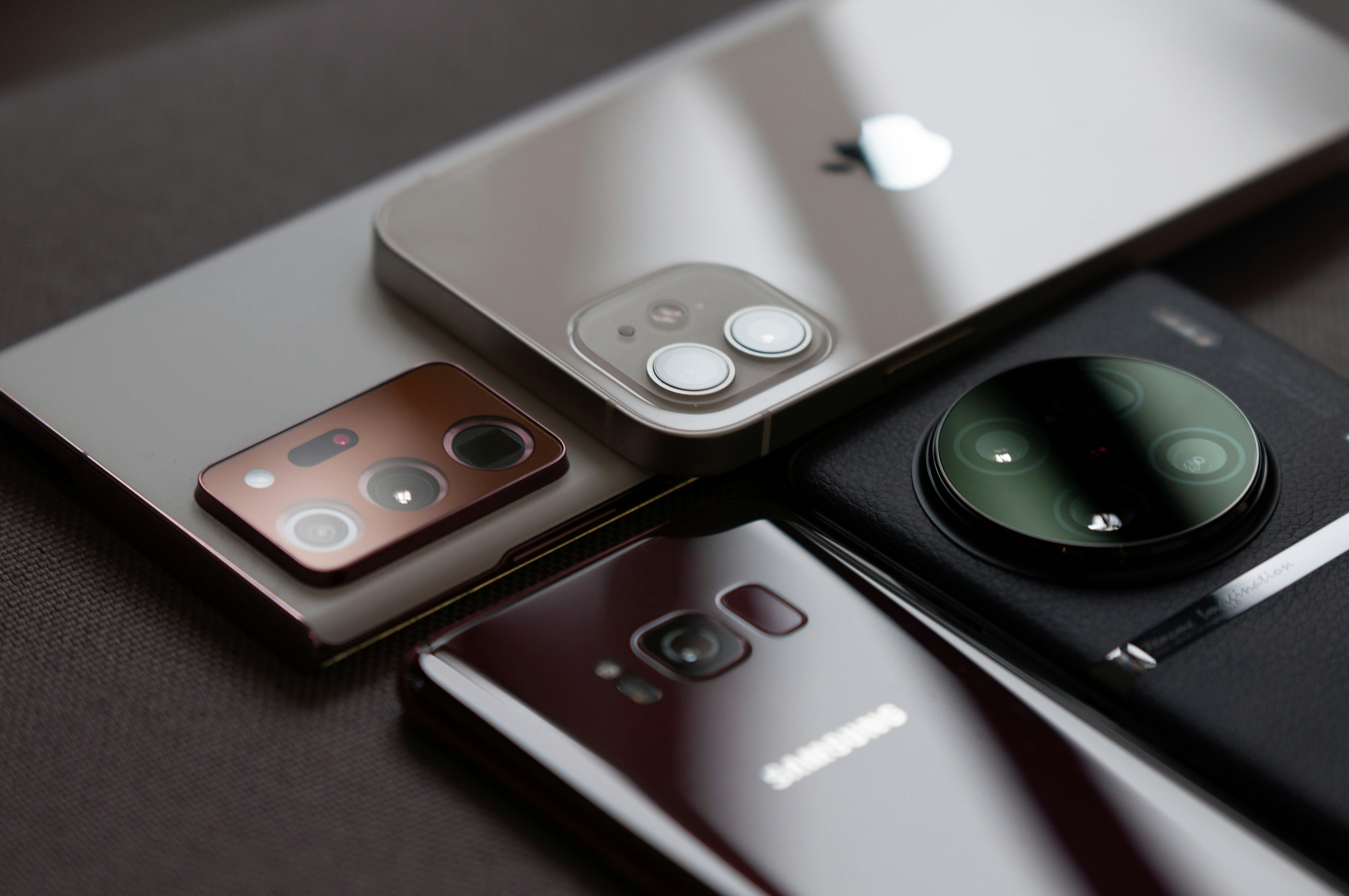

What Does It Mean to Clone Your Phone?
Phone cloning means making an exact copy of the data and settings from your current phone to another device. This process can be particularly useful when upgrading to a new phone or recovering your data after loss or damage to your device. Cloning your phone ensures that you can continue using your new device without interruption, without having to manually transfer data.
Important to Know: "exact copy" is not always 1-to-1 in practice. Due to security, some components are deliberately not fully transferred (for example, banking apps (usually require reactivation/login), authenticator apps (depending on their own backup/sync), DRM content, device-specific licenses, and sometimes eSIM profiles).
Cloning, Migrating, or Backing Up: Why That Nuance Matters
With "legitimate cloning," it is almost always about migrating: you transfer data and settings via Apple/Google or the manufacturer. Illegal "cloning" refers to unauthorized copying or intercepting of data (for example, to read messages). This is not only unethical but can also be punishable and poses significant privacy and security risks.
Why Would You Clone Your Phone?
Transition to a New Device: When purchasing a new phone, you probably want to keep all your existing apps, contacts, photos, messages, and other important data. Cloning makes this process quick and efficient.
Tip: check in advance which apps need to be logged in again (think of banking, DigiD, 2FA apps).
Backup and Restore: As a form of backup, cloning your phone can help recover data after an accident where you lose or damage your phone. Distinguish between "cloud backup" (convenient but sometimes limited) and a full local backup (often more complete, depending on the platform). On iPhone, this can be done, for example, with a backup via Finder (macOS) or the Apple Devices app (Windows). If that app is not available, you can use iTunes on Windows. On Android, this varies by brand: in addition to Google backup, many manufacturers also have PC software or their own transfer tool that allows you to bring extra data.
Multiple Devices: For users who use multiple devices simultaneously, such as a work and a personal phone, cloning can help have the same settings and data on both devices.
Note: some accounts and apps are designed for one active device at a time or require extra verification when used on multiple devices.
How Do You Clone Your Phone?
Cloning a phone can be done in various ways, depending on your device's operating system and the available tools. Here are some of the most common methods:
Using Factory Tools
Android: Many Android phones have built-in data transfer features. For example, Samsung offers Smart Switch, which allows users to easily transfer their data. Other brands have similar 'Device Switch' apps or a built-in "Data Transfer" wizard during setup.
iOS: Apple offers a seamless transition with iCloud and the built-in migration tool, which allows you to easily transfer your data from your old to your new iPhone. Many users opt for 'Quick Start' (device-to-device) as this often carries over more settings than just an iCloud restore.
Third-Party Software: There are various software packages available that enable phone cloning, such as Dr.Fone, MobileTrans, and Cloneit. These tools often offer more flexibility and functionality than the built-in options. Be extra critical here: not every tool is transparent about what happens to your data. Only choose software with a clear reputation, clear privacy terms, and preferably without unnecessary permissions.
SIM Cards and SD Cards: For some of your data, such as contacts, you can easily use SIM cards and SD cards. However, this is limited and does not provide the same extensive data transfer as software options. Moreover, contacts are often stored in your Google or Apple account instead of on the SIM. And many modern phones no longer have a microSD slot.

Step-by-Step Guide: Cloning an Android Phone via Google Drive
Here is a simple guide for cloning an Android phone to another Android phone using Google Drive:
Backup on Your Old Phone
- Go to 'Settings'.
- Select 'System' and then 'Backup'.
- Make sure your Google account is selected and turn on the backup option.
- Tap 'Back up now' to create a recent backup (it’s handy to check in advance if photos are syncing via Google Photos and if your chat apps – like WhatsApp – have their own backup settings, as these do not always automatically fall into the same backup).
Restore on Your New Phone
- Turn on your new phone and follow the setup instructions.
- When asked if you want to transfer data, choose the option to restore a backup from the cloud.
- Log in with your Google account and select the most recent backup from your old phone.
- Wait for the process to complete. Your data and settings are now being transferred to your new phone (some apps "flow" in after installation; preferably keep the device plugged in and on Wi-Fi to let everything finish properly).
Important Considerations
Security: Make sure to use secure methods and reliable software to protect your data during cloning. Preferably use official transfer tools, do this on a trusted Wi-Fi network (or via cable), and avoid 'free clone apps' that ask for excessive access.
Storage Space: Check if your new device has enough storage space for all the data from your old device. Also, consider "hidden" storage such as offline Spotify playlists, downloaded maps, or podcasts; these often need to be redownloaded.
Compatibility: Some data or apps may not be fully compatible between different operating systems or devices. Especially when moving from Android to iOS (or vice versa), it is better to rely on account sync (Google/Apple), export/import, and app-specific migration, rather than a "1-to-1 clone".
Extra Tip for when you give away or sell your old phone: log out everywhere first, remove device links if necessary (e.g., 'Find my iPhone'/'Find My Device'), make a backup, and only then perform a factory reset. This prevents accounts or data from being left behind.